Duckrow Academy
Learn Duckrow, one job at a time
Short narrated walkthroughs of Duckrow on real-looking screens. Each lesson teaches one job through one worked example, with written steps, the full transcript and a small task to try in your own workspace.
10 lessons out now, 58 more on the calendar. New lessons every Monday.
1Watch
Two to four minutes. The cursor shows every click, and captions follow the voice.
2Read
The same steps in writing, plus the full transcript, so you can skim or search.
3Try it
A small task in your own workspace, then three questions to check what stuck.
Start here: from a list to a reply
Ten short lessons that walk the whole loop once: find your way, build a table, let AI score and write, set up a campaign and its sequence, answer replies, and work by chat.
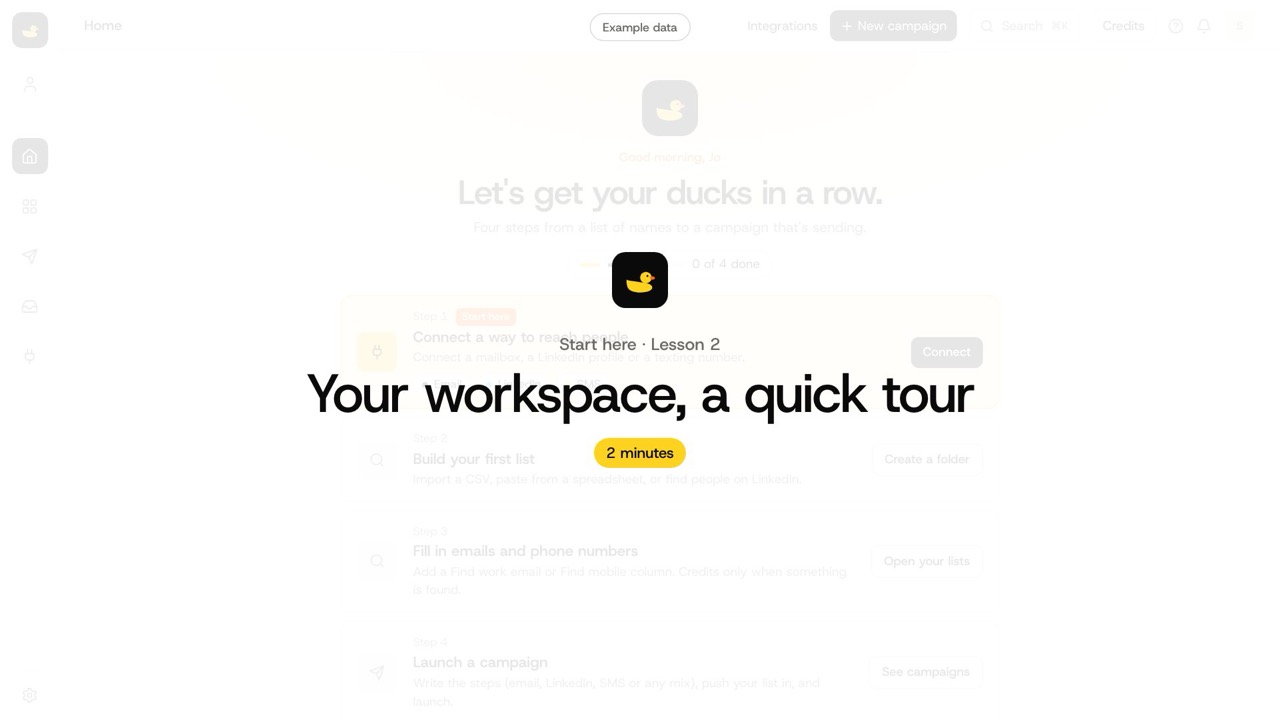
- 1Start hereYour workspace, a quick tourHome's getting-started steps, the rail, the top bar (search, credits, help, bell) and the workspace switcher.2 min
- 2Start hereYour first table in five minutesFolders and workbooks, a blank table, CSV import with column mapping, paste from Sheets or Excel, CSV export.2 min
- 3Lead tablesFind any row with filters, sorts and searchFilters with AND and OR, run-status filters, sorts and search with highlights.1 min
- 4AI Columns and JevWrite your first Use AI columnA prompt with column chips; templates for Lead fit, Company summary and Opening line.2 min
- 5AI Columns and JevGet AI answers you can filterAnswer keys become columns: scores, reasons, red flags.1 min
- 6SequencesSet up your first campaignOne campaign per workbook; schedule, time zone, days and hours.1 min
- 7SequencesBuild one sequence across channelsEmail, Wait, Text and LinkedIn steps on one canvas; edit steps while it runs.2 min
- 8InboxAnswer every reply from one inboxEmail, text and LinkedIn together; queues; channel and campaign filters; campaign chips.2 min
- 9The AssistantAsk the Assistant about your tableThe toolbar button and Cmd or Ctrl+J; the panel beside the table; Sonnet 5.5 or Opus 5.5.2 min
- 10AI Assistants: Duckrow MCPConnect Claude to DuckrowCustomize, Connectors, Add custom connector, https://duckrow.ai/mcp, sign in, Allow.2 min
Tracks
Each track teaches one part of Duckrow through one running example. A filled mark is a lesson that's out.
- Start hereFind your way around Duckrow and build your first table.3 lessons, 2 out now
- Lead tablesBuild, clean, enrich and filter lists in a table that runs on its own.10 lessons, 1 out now
- AI Columns and JevScore, research and write with AI on every row, and keep the cost in check.7 lessons, 2 out now
- Finding emails and mobilesFind work emails and mobile numbers, and know what each find costs.3 lessons, first on Jan 25
- SequencesBuild one sequence across email, LinkedIn and text, and launch it straight from a table.9 lessons, 2 out now
- Duckrow SMSText leads from several numbers while each lead keeps hearing from one.5 lessons, first on Jan 4
- LinkedInRun LinkedIn steps from your own profile within safe daily limits.3 lessons, first on Dec 14
- InboxAnswer every reply from one place, on the right channel, fast.4 lessons, 1 out now
- Command CenterCheck the health of every campaign in ten minutes.2 lessons, first on Nov 16
- Teams and rolesBring your team in with the right access and one shared wallet.3 lessons, first on Nov 16
- Billing and creditsKnow what costs credits, what's free, and how to cap spend.3 lessons, first on Nov 9
- The AssistantAsk the Assistant to import, check and run a table for you, with the cost shown first.3 lessons, 1 out now
- AI Assistants: Duckrow MCPConnect Claude, ChatGPT, Cursor or Gemini to your workspace.4 lessons, 1 out now
- ComplianceKnow the email and texting rules that apply to your outreach. General information, not legal advice.4 lessons, first on Nov 30
- PlaybooksWatch a whole workflow end to end, from list to replies.5 lessons, first on Feb 1
Release calendar
New lessons go out on Mondays. A date can move when a lesson needs its feature checked live first.
- Oct 19
- Organise work by client with folders and workbooks
- Pick the right column for every field
- Clean a messy list fast
- Write a formula in plain English
- Oct 26
- Run a column only on the rows that need it
- Pick a model and know what it costs
- Ask Jev for Yes, No, a score or a pick
- Spend nothing on rows Jev rules out
- Nov 2
- Personalise every message with variables
- Branch on what's in your table
- Let AI summarise, draft and sort replies
- Clear the inbox at speed
- Nov 9
- Understand how credits work
- Import a list and run checks by chat
- Know what the Assistant will and won't do
- Know what the connector can do, safely
- Nov 16
- Run your Monday check
- Ask anything, and connect your channels
- Work in a team workspace
- Give everyone the right role
- Nov 23
- List the customers a company names on its site
- Rate a list against your ideal buyer
- Know what's shared and what's yours
- Read your Billing tab and cap AI spend
- Nov 30
- Bring any data with the HTTP API column
- Pause a lead when their job changes
- Follow email rules in the US and Canada
- Text only people who agreed to hear from you
- Dec 7
- Run columns safely, with the cost first
- Write steps that sound like you
- Choose a plan and upgrade
- Understand A2P 10DLC and verified toll-free
- Dec 14
- Send from your mailboxes at a safe pace
- Connect your LinkedIn
- Connect ChatGPT to Duckrow
- Connect Cursor and Gemini
- Jan 4
- Know a lead's email provider and phone type
- Keep every lead on the number that first texted them
- Get texting turned on
- Write text steps that land
- Jan 11
- Launch, and let new rows send on their own
- Keep track of who's in and who's out
- Protect your numbers
- Text at volume
- Jan 18
- Score LinkedIn profiles in Advanced mode
- Run LinkedIn steps within safe limits
- Mix LinkedIn, email and text in one sequence
- Reply on the right channel, from the right sender
- Jan 25
- Find verified work emails
- Find mobile numbers, and use them carefully
- Spend smart on finds
- Know the rules for your use case
- Feb 1
- Duckrow in three minutes
- An agency onboards a new client
- A SaaS team that works from chat
- Feb 8
- Ideal Billing's Sunday run
- From a PE thesis to owner conversations
- A recruiter's passive-candidate pipeline
Later, when the feature ships
Lessons for pieces that aren't built yet. Each is written when its feature ships.
- Outlook and Microsoft 365 mailboxes
- Set up texting yourself
- Top-ups and add-ons
- Bring your campaigns from lemlist, Instantly or PhantomBuster
- Manage connected assistants
- CRM sync, API and webhooks